Controls and Settings
Minecraft Particle Settings: A Practical Guide
Reduce visual clutter while preserving effects you rely on.
Choose Your First Adventure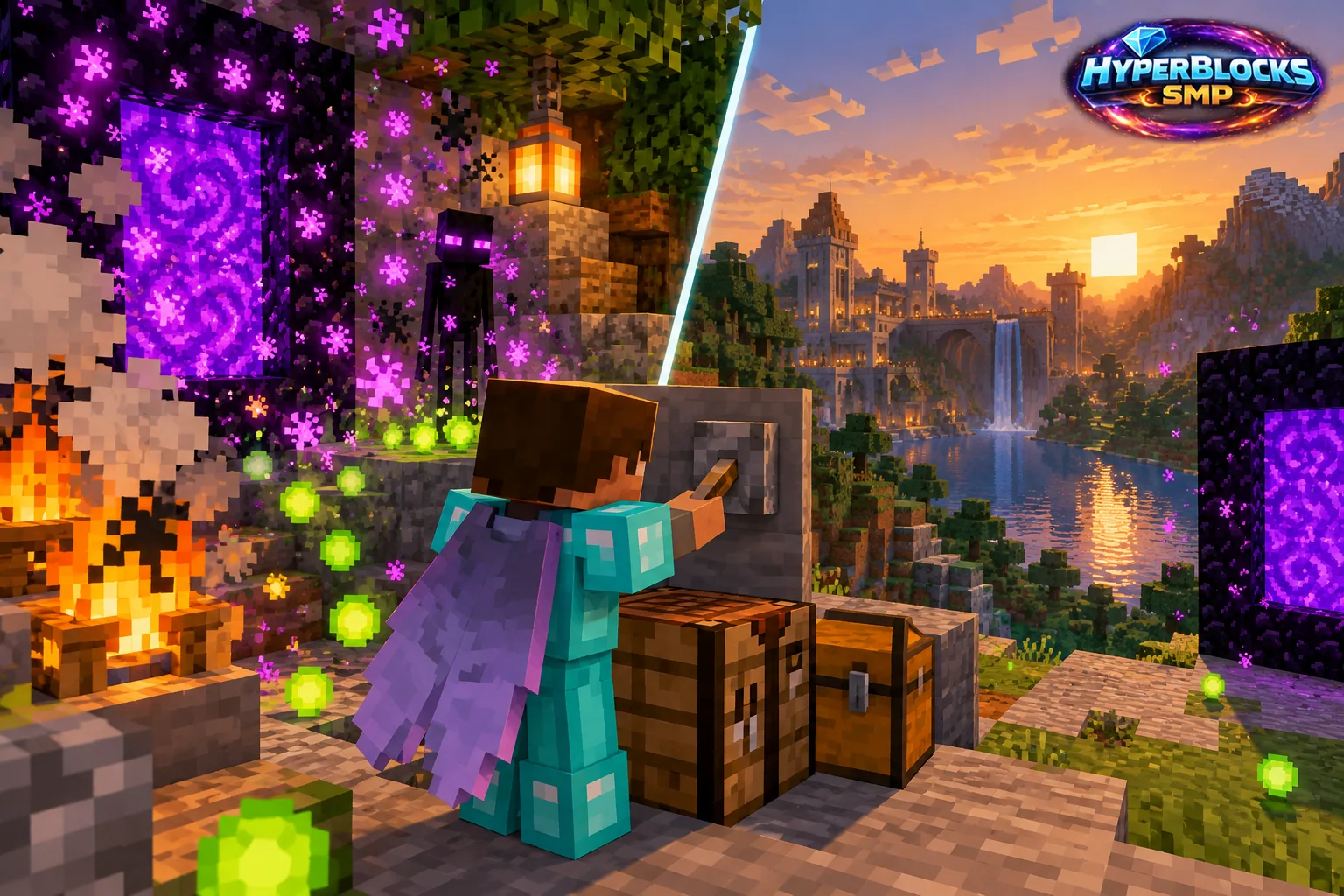
Choose Useful Visual Feedback
Particle settings affect the amount of certain visual effects shown by the client. Reducing them can make a busy scene easier to read, but some effects help you recognize an activity or status. Test the setting with the gameplay you actually do.
Compare a Busy but Safe Scene
Stand near a familiar workstation or harmless effect and change one particle option at a time. Look for the information you still need, such as whether an action appears to have occurred. Then try a normal building or travel task. Keep other graphics settings steady so the comparison remains understandable.
Use a Readable Combat Practice Area
If visual clutter makes encounters difficult to follow, compare settings in a manageable activity with a clear exit. Check the status display and item behavior rather than relying only on particles. Choose the least distracting setup that still gives you the cues needed for your usual play.
Do Not Diagnose from One Missing Effect
A reduced visual effect does not necessarily mean the underlying mechanic stopped working. Inspect the actual result or status before assuming that a server feature is broken.
Related planning: Minecraft Brightness Settings: A Practical Guide; Minecraft Chat Settings: A Practical Guide.
Put This Into Practice on HyperBlocks
Minecraft client settings and HyperBlocks server menus are different tools. Once connected, use /m for the Hyper Menu and follow the current joining instructions for your edition and version.
Reference and Further Reading
Check your edition, platform and saved bindings. Java defaults are identified explicitly.
Your Next Adventure
Get Comfortable, Then Make It Your World
Set up controls you can rely on, then join HyperBlocks and choose your first project. Survival offers a shared world for building and exploring. For PvP, read the Hyper Duels guide.