Your Character
My Journey includes Inventory, Ender Chest, and Website Storage tabs. Read the connection requirements before moving items.
Inventory and Website Tools →Start Here · HyperCore
Bring your HyperBlocks character to the website. Find your HyperCode in Survival, create or link your account, and open your player tools in My Journey.
Step 1
Open HyperBlocks at play.HyperBlocksSMP.com and enter Survival with the character you want to link. Wait for the scoreboard to appear on the right side of the game screen.
Keep the game open while you set up your account in a browser. You can use /website in game for the website link.
Step 2
Look near the bottom of the right-hand scoreboard for the gold key and the HyperCode row. It sits below the Hyper Menu shortcut. Read the six-character code next to that label.
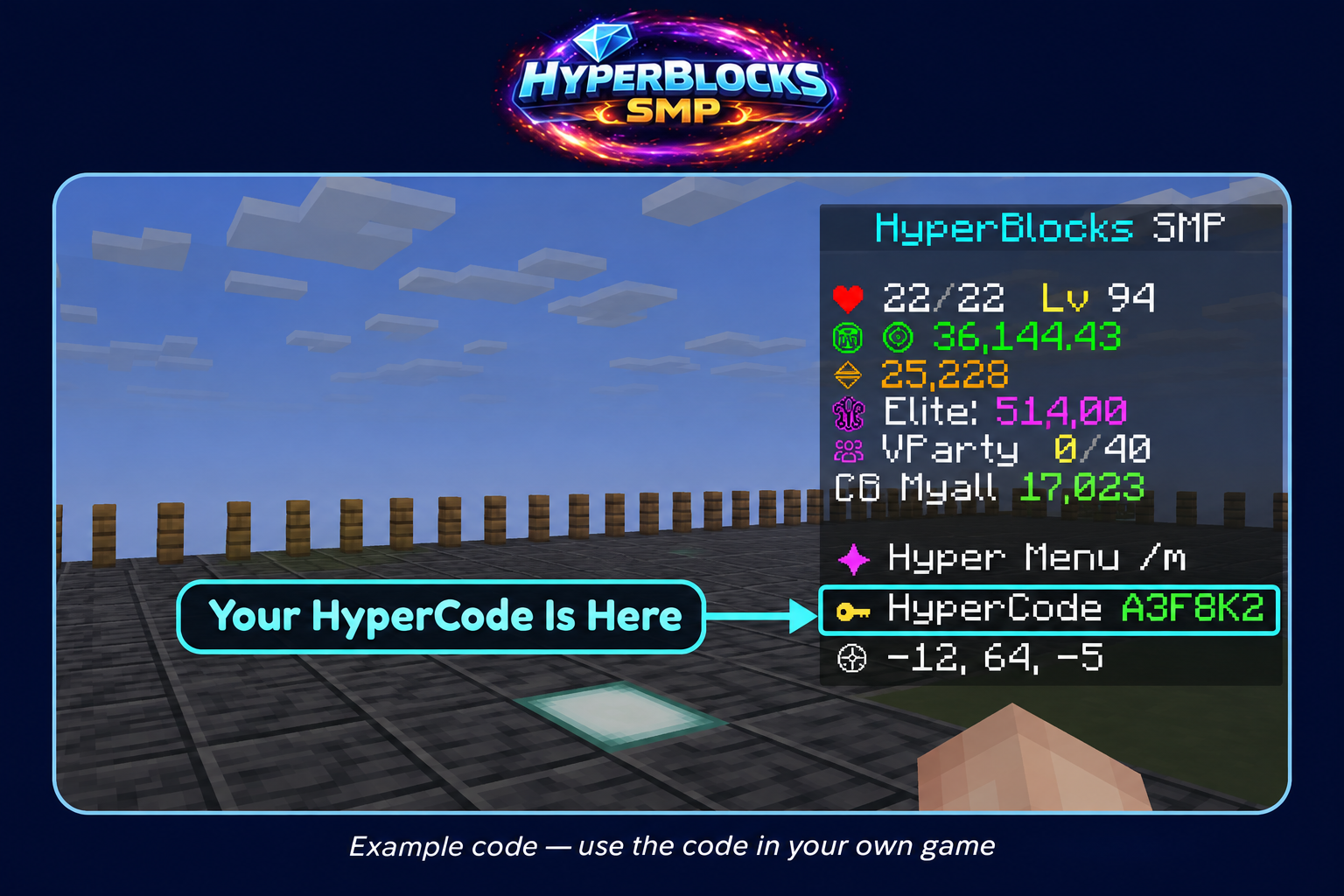
The code connects the character you are playing to your website account. Keep it private and enter it only on the HyperBlocks account page.
Step 3 · New Website Account
Open Create Account. Complete the four fields shown below:
Select Create Account. When registration succeeds, the site opens your player dashboard.
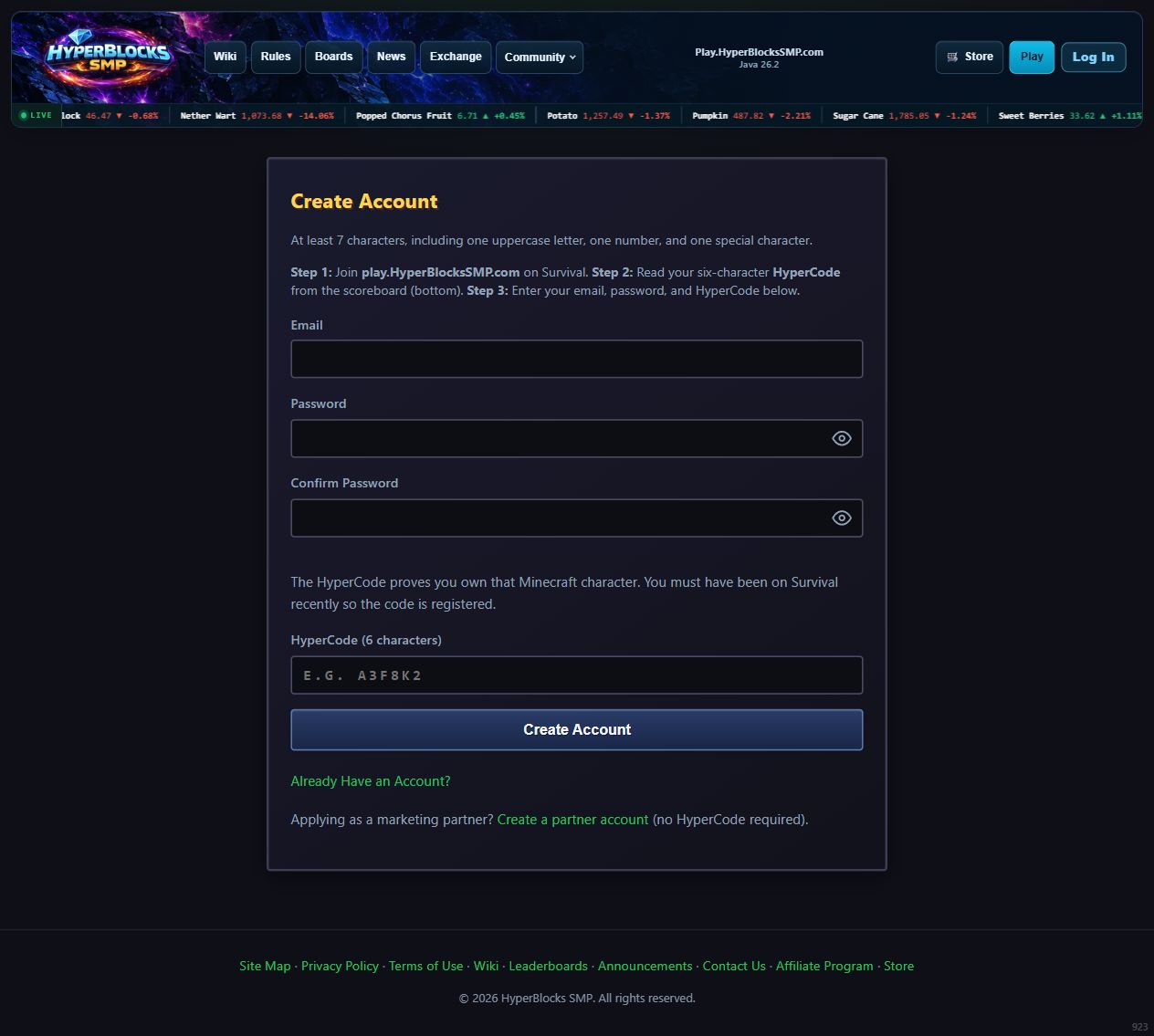
Log in with your existing email and password, then open Link Minecraft Account. Enter your current HyperCode and follow the link form.
If the account is already linked, that link takes you to My Journey. Check the character name there before continuing. Use Forgot Password? if you need to recover your existing login.
Step 4
Open My Journey. The welcome panel should show your character’s name and the words Linked account. This is your check that the website is connected to the right character.
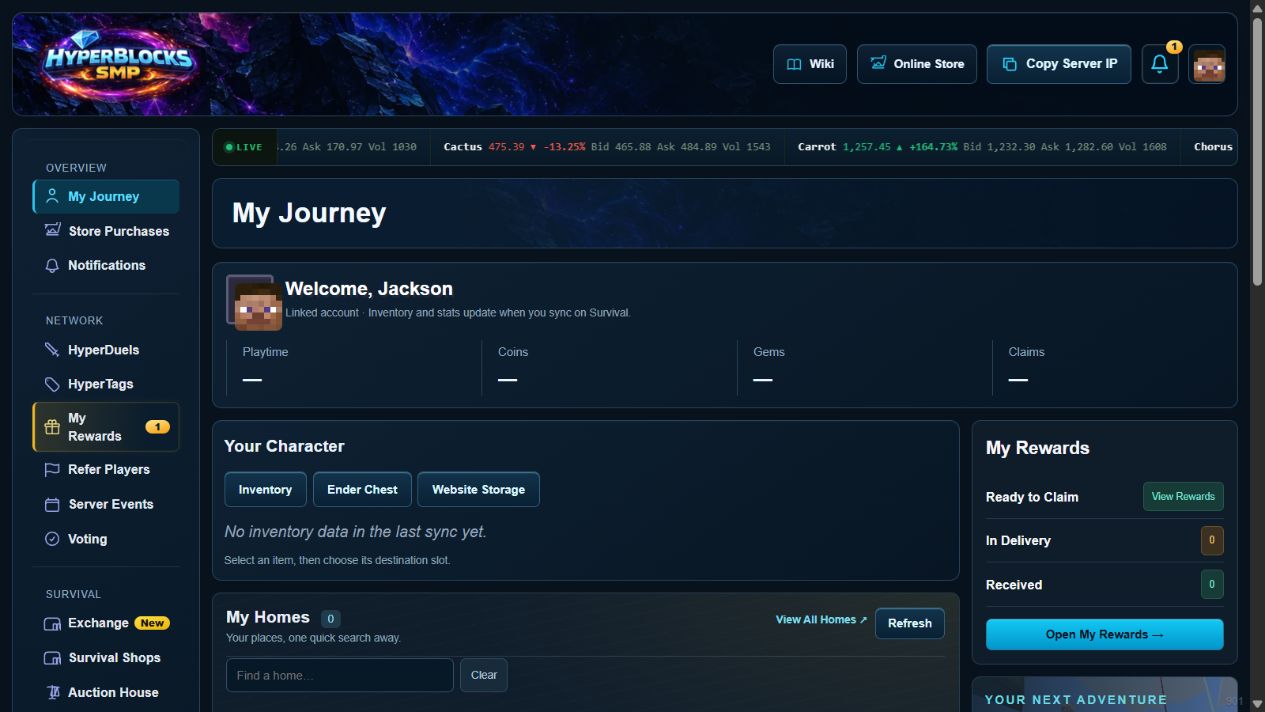
A newly linked account may show dashes or “No inventory data in the last sync yet.” Join or remain on Survival so your character data can sync, then refresh the page. A linked account and a completed game-data sync are separate steps.
Step 5
Use the left sidebar to choose a feature. On a smaller screen, open the navigation menu to see the same destinations.
My Journey includes Inventory, Ender Chest, and Website Storage tabs. Read the connection requirements before moving items.
Inventory and Website Tools →Find your protected land, review claim details, and manage the options available to your character.
Land Claims Guide →Review your saved places from the dashboard or open My Homes in the sidebar.
Homes Guide →Open Voting for vote links and progress, or My Rewards to review rewards available to you.
Voting Guide →Some live tools require you to be online in Survival, and some options depend on your rank or permissions. Check the feature’s own page for its current requirements.
Contact HyperBlocks if you still need help. Include the step you reached and the error message, without your password or HyperCode.
Have your own HyperCode handy, then open the account page.