Ranks & Premium
Ranks unlock perks such as extra land claims, homes, warps, auction listings, kits, HyperPack storage, Chunk Hoppers, Extra Hearts, and chat options. Member is earned after five hours of Survival playtime; VIP and VIP+ are premium ranks from the Store. See the rank comparison table for limits at a glance. More detail: HyperPacks by rank, Chunk Hoppers, Extra Hearts, and the Extra Hearts page.
What Determines Rank Perks and Rules
Perks come with your rank. Buying a rank in the Store grants that rank’s perks. The comparison numbers below match the live server limits (homes, warps, auction listings, HyperPack slots, Chunk Hoppers, Extra Hearts, and so on).
Every player follows the Server Rules. Compare Member, VIP, and VIP+ below to choose the perks that suit your play.
Rank Comparison
/claim creates a 10 × 10 claim using 100 Claim Blocks. Use /claim blocks 100 or /claim size 10x10 to choose a square, and use Tab for examples. Available claim blocks and land protection rules still apply. The book at the top center of /clp explains claiming and tools. The Claim Kit shows its Member Rank requirement until unlocked; eligible players can also use /clp starterkit. Open /clp and choose Claim Kit to get the claim shovel, subclaim shovel, inspector stick, and reference guides once every 24 hours.
Quick comparison of main perks by rank. Newcomers share the same HyperPack slot size as Members for new packs; Chunk Hopper placement unlocks at Member. Extra Hearts stay at a normal 10 until Member — see Extra Hearts by rank. AFK return with /afkback remains available to everyone.
/back is available to VIP and VIP+; Newcomers and Members do not have access. In-game menus and help show this action only to eligible players. Returning from the AFK area with /afkback remains available to everyone.
| Perk | Member | VIP | VIP+ |
|---|---|---|---|
| Main land claims | 2 | 5 | 10 |
| Homes | 3 | 5 | 7 |
Last Location (/back) | Not Available | 1-minute cooldown | 30-second cooldown |
Death Return (/dback) | Not Available | Yes | Yes |
| Auction House listings | 5 | 10 | 15 |
| Auction House Auto-Relist | — | Yes | Yes |
| HyperPack slots (new packs) | 6 | 9 | 18 |
| Additional Filters per Chunk Hopper | 0 | 1 | 2 |
| Chunk Hoppers (place limit) | 1 | 2 | 4 |
| Chunk Hopper Auto-Sell (items / 24h) | VIP Required | 5,000 | 25,000 |
| Max Extra Hearts | 12 | 15 | 20 |
| Lowest bar when withdrawing hearts | 9 | 1 | 1 |
| Kits | — | VIP Kit and Preview | VIP+ Kit and Preview |
| Incognito Mode | — | — | Yes |
| Chat color / format | — | Yes — VIP format | Yes — plus magic/formatting |
| /nick (nickname colors) | — | Yes | Yes — more colors |
| AFK Transfer Idle Time | 20 minutes | 30 minutes | 60 minutes |
| Home cooldown | 150s bypass | Bypass | Bypass |
| Chest shop in claims | Yes | Yes | Yes |
| Book pages (e.g. written books) | — | 100 pages | 200 pages |
Chunk Hoppers
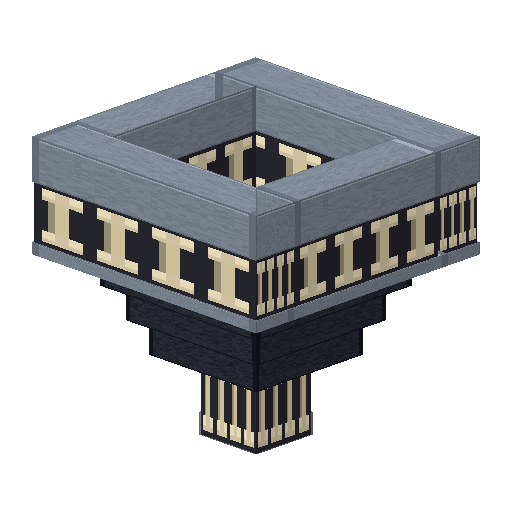
Chunk Hopper Perk
More Items, One Chunk Hopper
VIP · +1 Item Type | VIP+ · +2 Item Types
Keep collecting your hopper’s original item and choose additional item types in its Filters menu. The allowance applies to each hopper you own.
Open settings by crouching and right-clicking your hopper. Hopper shown as an example; your rank unlocks Chunk Hopper perks. Hopper items are obtained separately.
Chunk Hoppers collect matching item drops from loaded chunks and move them into attached storage, or, with VIP or above, sell eligible items for coins when you enable Auto-Sell. The first slot is a locked icon for the hopper’s original item; the other four slots hold collected items. All selected item types share that storage.
Quick Start · Enable Auto-Sell · Settings · Extra Filters · Statistics · Troubleshooting
Place Your Hopper and Open Its Settings
- Get a Chunk Hopper for the item you want to collect, then place it pointing into a chest as you would a normal hopper. The attached chest receives collected items.
- Right-click the placed hopper to open its storage. The first item icon identifies what it collects; it is a fixed filter, a control that shows the selected material.
- To open Chunk Hopper Settings, crouch and right-click the placed hopper. You can also open its storage and click the first item icon with a normal click.
- Use Back to Storage to return to the hopper’s inventory.
You must own the hopper or have permission to manage it. Auto-Sell and Keep Stock are owner-controlled. Auto-Sell starts disabled when a hopper is placed.
Enable or Disable Auto-Sell by Clicking
VIP or above is required. Members can collect drops into attached chests. VIP and VIP+ unlock Auto-Sell. An ineligible attempt shows: “You need VIP or above rank to enable Auto-Sell.” The same rule applies to the settings button, Shift-click, and commands.
Use the hopper’s menu to manage selling. For example, on a Bamboo Chunk Hopper:
- Right-click the hopper to open its storage.
- Move your pointer over the bamboo icon in the first slot. On another hopper, use its corresponding item icon, such as bones or wheat.
- Hold Shift and click that icon to toggle Auto-Sell. Shift-click it again to switch it back.
- To check the setting, open Chunk Hopper Settings and hover over Auto-Sell: green Enabled means selling is on; red Disabled means it is off.
Another click-only method: crouch and right-click the placed hopper, then click the gold-ingot Auto-Sell button in its settings. Each click switches between enabled and disabled. A normal click on the first item icon opens settings; Shift-click toggles selling.
Auto-Sell pays the hopper’s owner using eligible wholesale prices, with a 10% automation fee. It checks on a 30-second cycle and requires at least one full stack of a material available to sell after Keep Stock and allowance limits. A full stack is that item’s normal stack size, which varies by item. Selected extra materials can also sell if they are eligible. Named, enchanted, or other custom items with item metadata are excluded from Auto-Sell.
While Auto-Sell is enabled, ordinary items matching active filters stay in the hopper for selling rather than moving into the attached chest. They also stay there while selling is waiting or the allowance is exhausted. Turn Auto-Sell off to resume normal attached-storage transfer. Keep the hopper’s four storage slots from filling up.
Chunk Hopper Benefits by Rank
| Rank | Active Hoppers | Extra Item Types per Hopper | Collection Area | Speed | Auto-Sell Items / Rolling 24 Hours |
|---|---|---|---|---|---|
| Member | 1 | 0 — original item only | Hopper’s own chunk | Standard | VIP Required |
| VIP | 2 | 1 | Own chunk and surrounding chunk ring (3 × 3) | Faster | 5,000 |
| VIP+ | 4 | 2 | Own chunk and surrounding chunk ring (3 × 3) | Faster | 25,000 |
Extra filter slots are reserved for additional materials. Auto-Sell allowance is shared across all of your hoppers and all their selected materials, with one shared allowance. Sold items leave the rolling allowance window 24 hours after their sale; each sale restores allowance after 24 hours. The settings menu shows the remaining allowance and the next recovery time.
Chunk Hopper placement unlocks at Member. Placement also follows the current per-chunk limits: one hopper per owner in a chunk and a maximum of eight across all owners in that chunk. Reach and speed are set when the hopper is placed; use its area preview to check an existing hopper. The displayed Pull Chunks value of 2 means the surrounding ring around the hopper’s chunk.
What Each Settings Button Does
| Button | How to Use It |
|---|---|
| Operating Status | Shows what the hopper is doing and whether its buffer has space. Status colors distinguish active operation, waiting, and unavailable or full conditions. |
| Auto-Sell | VIP or above required. Click to enable or disable selling. Hover to see the current state and automation fee. Owner-controlled. |
| Keep Stock | Keep a reserve per material inside this hopper while Auto-Sell is enabled. Left-click adds 16; right-click removes 16; Shift-click resets to zero. Only surplus can sell. The control caps at three times the original item’s stack size (192 for a 64-stack item). Owner-controlled. |
| Filters | Choose extra item types within the owner’s rank allowance. All materials share the same four storage slots and Auto-Sell allowance. |
| Collection Area | Click to show the collection boundary with particles for eight seconds. Only you see the preview. |
| Statistics | Open lifetime counters, recent history, hopper details, and top lists. |
| Auto-Sell Allowance | Hover to see remaining items, total allowance, and the next recovery time in the rolling 24-hour window. |
| Estimated Next Sale | Shows a potential sale quantity and estimated net coins for the original material, based on its recent net sales. It waits for a first sale when no recent history exists. Use this historical estimate to plan sales of the original material; actual prices vary. |
| Back to Storage | Click to return to the hopper inventory. |
Keep Stock example: with a reserve of 32 and 96 ordinary bamboo in storage, 64 bamboo can sell if your allowance permits it. The 32 reserved bamboo remain inside the hopper. Reserving too much across several materials can fill the shared storage.
Choose Additional Items to Collect
- Open Chunk Hopper Settings, then click Filters.
- The editor has three rows. VIP has one usable slot; VIP+ has two.
- Click an item in your own inventory to select its material in an available slot. This copies the material choice; it does not consume or deposit your item.
- To remove a selection, click its icon with an empty cursor. You can then choose another item. Changes save immediately.
- Click Back to Settings to return.
Filters select item types, by material. The original filter and storage capacity stay the same. The owner’s current allowance governs both collection and Auto-Sell, including offline-owner checks. If the owner loses a rank, saved selections beyond the new allowance become inactive; they are retained for a later eligible rank.
Understand Your Statistics
- Lifetime counters: items collected, items transferred to storage, items Auto-Sold, and net coins earned after the automation fee.
- Hopper details: owner, location, speed modifier, collection reach, and remaining Auto-Sell allowance.
- Last 24 Hours and Last 7 Days: collected, transferred, sold, net coins, and full-buffer seconds. Full-buffer time is sampled while the hopper is loaded and cannot accept more of its original material; it does not count unloaded time.
- Recent Net Sale Rate: historical coins per sold item, after fees. Use the current market price when planning a sale.
- Refresh: click to update the displayed values. Top Collected and Top Transferred show the server’s leading hoppers; Settings returns to management.
Recent history started with the management update and uses one-minute buckets. Recent windows track activity recorded since the management update. When you normally break and collect your custom hopper, its extra-filter selections, Keep Stock setting, and recent-history identity travel with the dropped item. Placing it again starts Auto-Sell off; check your settings after moving it. Wait for an active sale to finish before moving your hopper.
If Collection or Selling Stops
- Collecting Drops: check that drops match the original or an active extra filter, the collection area includes them, the relevant chunks are loaded, and the storage buffer has room. Harvest your crops to create drops, and keep the collection area loaded while gathering them.
- Storage Full: empty the buffer or make space in the attached chest. With Auto-Sell enabled, check the selling status and allowance; matching items do not automatically fall through to the chest when selling is capped.
- Waiting for a Full Stack of Surplus: collect enough eligible items above your Keep Stock reserve. The remaining allowance must also cover at least a normal full stack.
- Allowance Exhausted: check the next recovery time, or disable Auto-Sell if you want matching items sent into the attached chest.
- No Sellable Filter Materials: the selected materials have no eligible wholesale listing. Collecting an item does not guarantee it can be Auto-Sold.
- VIP or Above Required: upgrade to VIP or above to enable Auto-Sell. If the owner loses eligibility, sales stop and matching items can move into the attached chest. Existing items and sale history are preserved.
- Selling Service Unavailable, Owner Unavailable, or Auto-Sell Unavailable: the hopper cannot currently complete a sale. Check the owner’s allowance and permissions; contact staff if the condition persists.
- Opening Settings: use your own hopper or one you may manage. Crouch and right-click the placed block, or open storage and normally click the first item icon.
Linked Storage: Future Feature
Place your hopper facing a chest to collect items into it.
Prefer commands? See the optional Chunk Hopper command reference. All everyday settings above can be reached by clicking.
HyperPacks by rank
When you first open a brand-new backpack and it becomes a HyperPack, how many storage slots that pack gets depends on your rank at that moment (the item keeps that storage size; see HyperPacks). Newcomers and Members both get 6 slots for new packs.
| Rank / stage | Slots for a new HyperPack |
|---|---|
| Newcomer | 6 |
| Member | 6 |
| VIP | 9 |
| VIP+ | 18 |
Extra Hearts by rank
Extra Hearts let you go past the usual ten-heart bar, bank spares, and pull them out as items. Your rank sets the max you can hold and how low your bar can go when you withdraw. Newcomers stay at a normal 10 until Member. Full guide and commands: Extra Hearts.
| Rank | Max hearts | Lowest bar when withdrawing |
|---|---|---|
| Newcomer / Default | 10 | 10 |
| Member | 12 | 9 |
| VIP | 15 | 1 |
| VIP+ | 20 | 1 |
Common commands: /hearts (status), /hearts withdraw <1–64> (make Extra Heart items), /hearts apply <1–64> (put hearts back on your bar). You can also right-click an Extra Heart item to apply it.
Ranks and Perks
Default (everyone) / Newcomer
Base permissions before Member: chat, 1 home, bed home, auction (up to 3 listings), buy/sell claim blocks, pet menu use and chat color, Discord chat, voice chat listen/speak. HyperPacks: 6 slots for each new pack you create at this stage (same as Member). Chunk Hopper placement unlocks at Member. Extra Hearts: standard 10-heart bar (extra capacity unlocks at Member). Use /afkback to return from the AFK zone.
Member
Earn Member after five hours of qualifying Survival playtime. Stay active in Survival to build your qualifying playtime.
- 6 HyperPack slots for new packs (per-item storage — see HyperPacks)
- 1 Chunk Hopper place limit · Collection and attached-chest storage. Auto-Sell requires VIP or above.
- Extra Hearts — up to 12 max; withdraw down to 9 on the bar (guide)
- 3 homes
- 2 main land claims
- Up to 5 Auction House listings
- Home cooldown bypass (150s)
- Return from the AFK zone with
/afkback - Create chest shops in your claims
Other: Chat, bed home, buy/sell claim blocks, pet menu use and chat color, Discord chat, voice chat listen/speak, claim protection.
VIP
Full perk layout: VIP on-site layout. Also sold on the Store.
HyperPacks
- 9 slots for each new HyperPack opened while VIP
Chunk Hoppers
- Place up to 2 (wider reach & faster collection than Member)
- Collect 1 additional item type per hopper, alongside its original item.
- Auto-Sell up to 5,000 items / 24h (
/ch autosell)
Extra Hearts
- Up to 15 hearts; withdraw down to 1 on the bar
/hearts· withdraw · apply — see Extra Hearts
Homes & travel
- 5
/homehomes, home cooldown bypass - Death Return: return to your last death location with
/dback(VIP and above). - 5 main land claims
Trading
- Up to 10 Auction House listings
- Auction House Auto-Relist
- Chest shops in claims
Kits
- VIP kit + VIP+ kit preview
Weekly rewards
/rewardweekly claim: 1,000 Coins + 25 Gems (every 7 days)
Chat & social
- VIP chat and join message formats
/nickwith colors, Discord sync, voice chat groups- Written books to 100 pages
Also includes
All Member perks. Rules are the same for everyone.
VIP+
Full layout: VIP+ on-site layout. Store: store.hyperblockssmp.com (e.g. multi-month options).
HyperPacks
- 18 slots for new packs at this rank
Chunk Hoppers
- Place up to 4 (same wider reach & faster collection as VIP)
- Collect 2 additional item types per hopper, alongside its original item.
- Auto-Sell up to 25,000 items / 24h (
/ch autosell)
Extra Hearts
- Up to 20 hearts; withdraw down to 1 on the bar
/hearts· withdraw · apply — see Extra Hearts
Homes & travel
- 7
/homehomes, home cooldown bypass - Death Return: return to your last death location with
/dback(VIP and above). - 10 main land claims
Trading
- Up to 15 Auction House listings, chest shops in claims
- Auction House Auto-Relist
Kits
- VIP+ kit
- Speedometer — on-screen travel speed while gliding with elytra
Chat, Nick & Books
- Chat colors + magic/formatting
- Extended
/nickcolors - Written books to 200 pages
- Incognito Mode — quieter travel (tab / join-leave privacy); see Incognito Mode
Weekly rewards
/rewardweekly claim: 1,500 Coins + 150 Gems (every 7 days)
AFK Rewards
- One reward selection every 30 minutes in the shared AFK zone
- VIP+ AFK Rewards — the VIP+ pool replaces the standard selection in the shared AFK zone; see AFK Rewards
Also includes
All VIP and Member perks. Same rules for every rank.
Store and Rules
Optional Store Subscriptions
Choose a one-time purchase or Subscribe & Save on eligible store products. Your first payment is the regular price; renewals are 20% off. VIP and VIP+ renew every 90 days. All Fly plans offer optional subscriptions that renew for their listed duration. The 24-hour plan renews every day, the 7-day plan every seven days, and the 14-day plan every fourteen days. A 90-day Fly plan renews every 90 days. Each successful payment adds the purchased duration again. The first payment is full price, with 20% off renewals.
Crate Keys, Gems and Claim Blocks renew every 30 days and deliver your chosen quantity again after each successful payment. Each subscription has its own billing date. Sign in and link your Minecraft account. Choose Subscribe & Save on each item and add it to your cart alongside any one-time purchases. Review each quantity, initial charge and renewal schedule in your cart, then pay together on the HyperBlocks checkout page. Each subscription renews and can be canceled separately. Other discounts do not combine with subscription pricing.
Your subscription helps support HyperBlocks and its continued development. Use My Subscriptions to cancel future renewals. Canceling does not remove previously delivered items or shorten already purchased time. Browse the Store for current prices.
VIP Plus highlights in the store include Incognito Mode and the VIP+ AFK reward pool in the shared AFK zone — see VIP Plus, Incognito Mode, and AFK Rewards.
Exact perks and prices can change. Check the Ranks page and Store for current offerings. You can also purchase fly, claim blocks, Coins, and crate keys (e.g. Pets Crate Key) separately.
Rules: The same server rules apply to every rank. Official rules: Server Rules (chat, conduct, building, economy, exploits, enforcement).