Browser Tools
HyperBlocks Voice Chat Setup for Java Survival
Match the Simple Voice Chat client mod to your Java installation before joining proximity voice.
Join Your Next Shared Adventure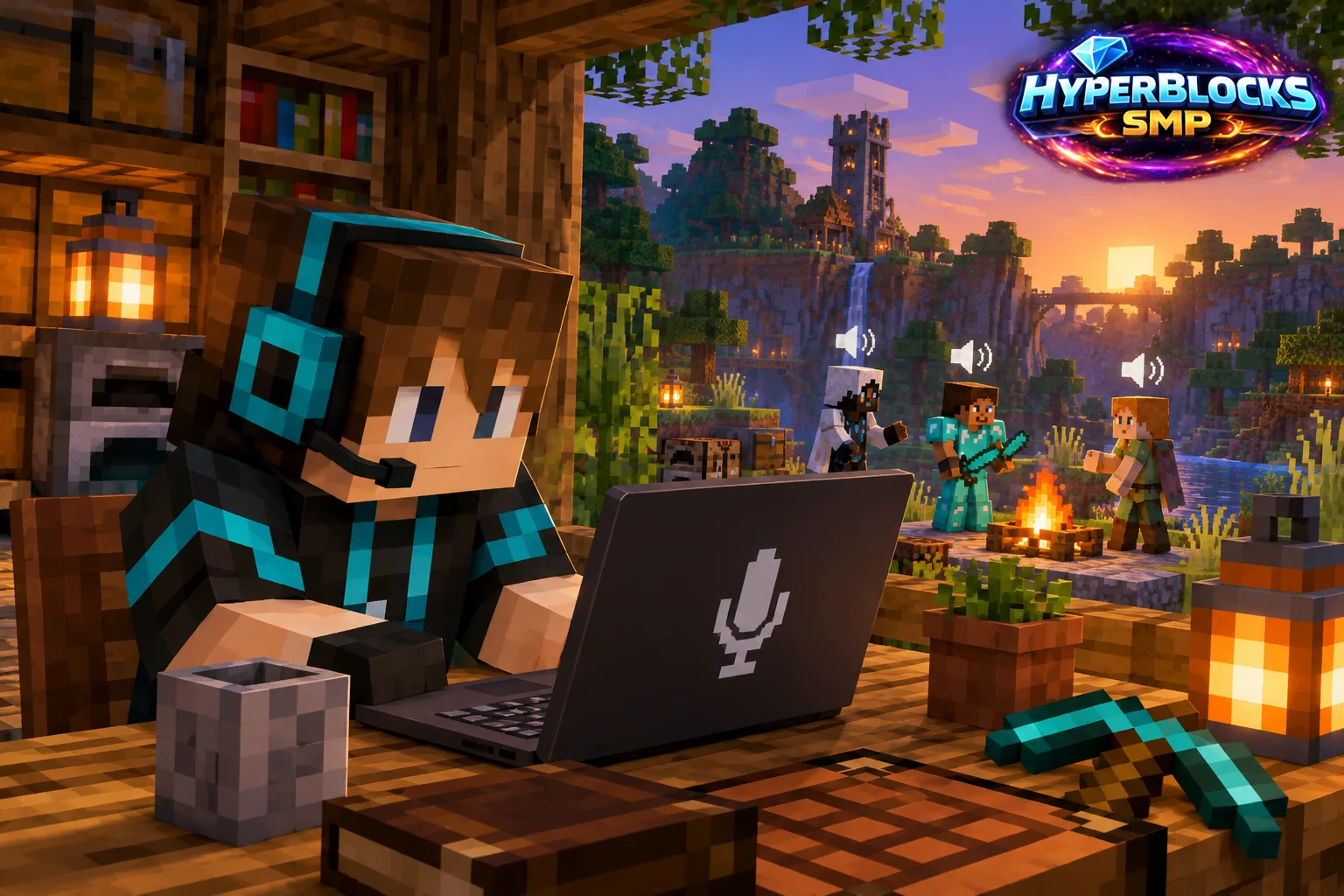
What to Know
The HyperBlocks voice reference describes Simple Voice Chat for Java players in Survival. Bedrock players cannot use this particular client-mod feature. The required client installation is distinct from a Paper server plugin. Choose one compatible mod loader for your setup and match the mod to the Minecraft version you actually launch.
A Practical Approach
Use the server’s /getvoicechat link or the current voice wiki for the supported download route. Follow the instructions for your chosen loader, such as Fabric, Forge, NeoForge or Quilt, without mixing incompatible installations. Launch the intended profile and check the voice menu. The documented default menu key is V, though your own key bindings may differ.
Make It Work for Your Base
Review microphone input, push-to-talk or voice activation before joining a conversation. Choose settings that suit your surroundings, and use available whisper or group options when appropriate. Keep private information out of public proximity conversations. Ordinary text chat remains useful for players who do not use the voice feature.
Related planning: How to Join HyperBlocks on Minecraft Java; Minecraft Chat Settings: A Practical Guide.
Put This Into Practice on HyperBlocks
HyperBlocks chat channels help groups coordinate in game. Optional proximity voice has separate setup requirements and is available for Java Survival, not Bedrock.
Reference and Further Reading
Use the current HyperBlocks menus and linked reference for server-specific requirements.
Your Next Adventure
Make the Next Adventure a Shared One
Give your group a project to rally around. Join HyperBlocks Survival, find a place for your base and use the chat tools to coordinate supplies, building and your next trip.